
Does an SSD Make a Difference in Gaming?
If you want to improve your gaming PC, upgrading your storage might be one of the smartest decisions you can make. But does an SSD make a difference in gaming, or is it better to spend your money on a new graphics card, more RAM, or a faster processor?
The answer depends on what you want to improve. An SSD can dramatically reduce loading times, make your computer feel more responsive, and help certain games load environments and assets more smoothly. However, it does not automatically increase your average FPS in every game.
In this guide, we explain how SSDs affect gaming performance, the differences between HDDs, SATA SSDs, and NVMe SSDs, and how to decide whether upgrading your storage is worth the money.
What Is an SSD?
An SSD, or solid-state drive, is a storage device that saves your operating system, applications, and games. Unlike a traditional hard disk drive (HDD), an SSD uses flash memory and has no moving mechanical parts.
This design allows an SSD to access stored data much faster than a typical mechanical hard drive. That speed can make a noticeable difference when launching games, loading levels, starting Windows, and opening applications.
There are two common SSD types for gaming PCs:
- SATA SSD: Uses the SATA interface and is generally much faster at everyday storage tasks than a traditional HDD.
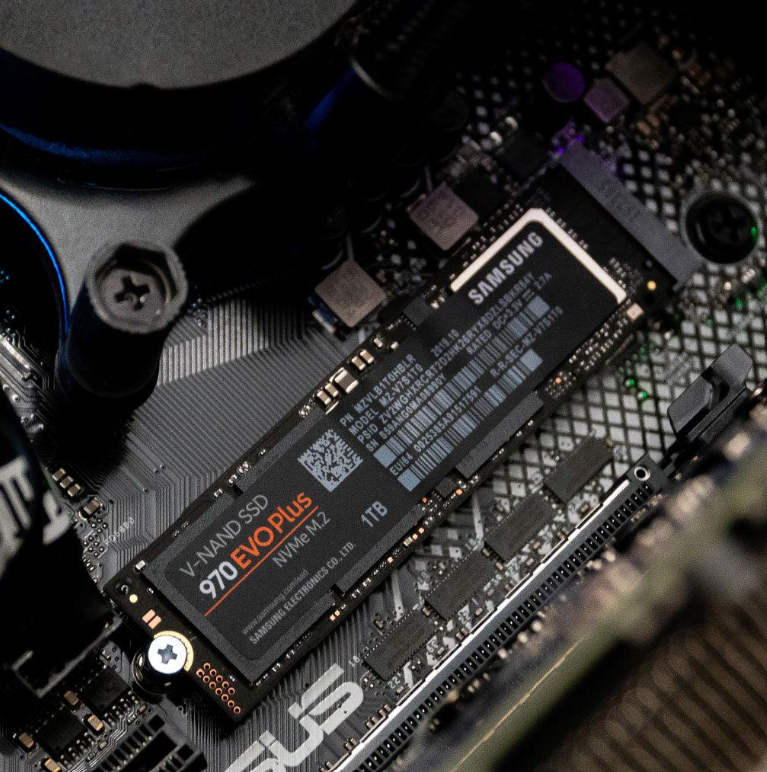
- NVMe SSD: Uses the PCIe interface, usually through an M.2 slot, and can deliver substantially higher sequential and random data-transfer performance than a SATA SSD.
Both can be excellent upgrades from an HDD. The best choice depends on your computer’s compatibility, your budget, and the performance your games actually need.
SSD vs. HDD: What Is the Difference for Gaming?
The main difference is how quickly each drive can retrieve game data. Modern games may need to load textures, audio, character models, maps, and other assets throughout a play session.
A traditional HDD reads data using a moving mechanical head. An SSD accesses flash memory electronically, which generally provides much lower access latency and faster data retrieval.
Here is a general comparison:
| Feature | HDD | SATA SSD | NVMe SSD |
|---|---|---|---|
| Loading games | Often slower | Much faster than an HDD | Often very fast |
| Windows startup | Usually slower | Fast | Fast |
| Random data access | Slower | Much faster | Often faster still |
| Moving parts | Yes | No | No |
| Typical connection | SATA | SATA | PCIe |
| Best reason to choose it | Low-cost bulk storage | Affordable speed upgrade | Fast storage and demanding workloads |
Actual performance varies by drive model, capacity, condition, and workload. An older or low-quality SSD may not perform like a modern high-quality model, and not every game can take full advantage of the fastest storage available.
For many gamers, the most noticeable improvement comes from moving a game from an HDD to an SSD. Moving that same game from a decent SATA SSD to a high-end NVMe SSD may produce a smaller improvement in everyday gameplay.
1. Faster Game Loading Times
One of the clearest advantages of an SSD is reduced loading time.
When you launch a game, load a save, enter a new level, or fast-travel across a large map, the game may need to retrieve a substantial amount of data from storage. An SSD can often complete these tasks much faster than an HDD.
You may notice improvements when:
- Launching games from your library.
- Loading saved games.
- Entering matches or new levels.
- Fast-traveling in open-world games.
- Restarting a game after a failed attempt.
- Moving between areas with loading screens.
The size of the improvement depends on the game and the rest of your hardware. Some games load much faster on an SSD, while others are limited by their own software, CPU processing, or other factors.
An SSD will not eliminate every loading screen, but it can reduce the time you spend waiting.
2. Does an SSD Increase FPS?
This is one of the most important questions to understand before spending money.
An SSD usually does not significantly increase average FPS on its own.
Frames per second (FPS) are mainly influenced by the graphics card, processor, game settings, resolution, and the game’s optimization. Storage speed generally has a different role: delivering game data when it is needed.
For example, if your graphics card is already working at full capacity, installing a faster SSD will not magically make it render substantially more frames per second.
However, storage can affect the experience in certain situations.
A game may occasionally need to load assets while you are moving through the world. If data cannot be delivered quickly enough, the game may experience delayed asset loading or interruptions. A faster drive can help in some of these situations, depending on the game engine and system configuration.
It is useful to distinguish three different measurements:
- Average FPS: The average number of frames rendered each second.
- Frame-time consistency: How consistently those frames are delivered.
- Loading time: How long the game takes to retrieve data and prepare a level or area.
An SSD is most consistently beneficial for loading time. Improvements to frame-time consistency or stuttering are possible in some games, but they are not guaranteed.
If your goal is to increase FPS in every game, evaluate your GPU, CPU, memory, and graphics settings before assuming that storage is the problem.
3. Can an SSD Reduce Stuttering?
Sometimes, yes.
Stuttering occurs when gameplay temporarily becomes uneven or pauses unexpectedly. It can have several causes, including shader compilation, insufficient RAM or VRAM, CPU bottlenecks, overheating, driver problems, background applications, and storage delays.
An SSD may help when the game is waiting for data from a slow HDD. This can be especially relevant in games that frequently stream new assets as the player explores the environment.
However, an SSD will not fix every type of stuttering.
If a game stutters because your graphics card does not have enough video memory, your processor is overloaded, or the game has a shader-compilation problem, changing storage might make little or no difference.
Before upgrading, pay attention to when the problem occurs. If the game freezes briefly while new areas load from an HDD, storage could be contributing. If the problem happens during intense visual effects or when many characters appear on screen, the CPU or GPU may be a more likely limitation.
4. Why SSDs Matter in Open-World Games
Open-world games often need to retrieve large amounts of data as players travel through cities, landscapes, buildings, and other environments.
Instead of loading every asset at the beginning, a game may stream data in the background. The system retrieves the assets needed for the player’s current location and prepares those that may be needed next.
A faster storage device can help this process by reducing the time required to retrieve data.
Potential benefits include:
- Faster travel between areas.
- Shorter fast-travel loading screens.
- More responsive loading of game environments.
- Reduced storage-related delays when assets are streamed during gameplay.
The exact result depends on how the game was designed. A title optimized for modern SSDs may behave differently from an older game originally developed around HDD performance.
An SSD is therefore a sensible upgrade for a gaming PC that still runs modern games from a mechanical hard drive, but it should not be treated as a universal fix for performance problems.
5. SATA SSD vs. NVMe SSD: Which Is Better for Gaming?
Both SATA and NVMe SSDs can improve the experience compared with an HDD. The question is whether the extra cost of NVMe storage is worthwhile for your setup.
SATA SSD
A SATA SSD is a practical choice for older computers and budget-conscious upgrades. It is substantially faster than a typical HDD for many everyday tasks and game-loading workloads.
Advantages include:
- A noticeable improvement over an HDD.
- Compatibility with many older desktop PCs and laptops that support SATA storage.
- A useful option for storing a large game library at a reasonable cost.
A SATA SSD can be an excellent choice if your computer does not support NVMe storage or if you want to spend as little as possible while improving responsiveness.
NVMe SSD
An NVMe SSD communicates over PCIe and can offer much higher transfer speeds. Modern NVMe drives are useful for demanding workloads and can be particularly beneficial when a game or application is designed to take advantage of faster storage.
Advantages include:
- High data-transfer performance.
- Excellent performance for many demanding workloads.
- A convenient M.2 form factor in compatible computers.
- Support for storage technologies used by some modern games.
However, the fastest advertised transfer speed does not translate directly into proportionally shorter loading times. Game loading depends on more than sequential read speed, so the difference between two SSDs may be less dramatic than their specifications suggest.
For most gamers upgrading from an HDD, getting a good SSD matters more than buying the most expensive NVMe model available.
6. What Is DirectStorage, and Does It Matter?
Microsoft DirectStorage is a technology designed to help supported PC games load data more efficiently from storage, including by reducing some overhead involved in getting assets to the graphics card.
Its benefits depend on the operating system, compatible hardware, game implementation, and how the game uses the technology.
Having an NVMe SSD does not mean every game will automatically use DirectStorage or become dramatically faster. A game must support the relevant technology, and the rest of the system must meet its requirements.
For most people choosing a drive today, DirectStorage is a useful consideration rather than the only reason to buy a particular SSD.
Focus first on compatibility, capacity, reliability, price, and your current storage bottleneck.
7. How Much SSD Storage Do You Need for Gaming?
Modern games can take up a significant amount of space, and their installation sizes vary considerably. Updates, downloadable content, and saved captures can increase storage requirements further.
Your ideal capacity depends on how many games you keep installed at once.
| SSD capacity | Who it may suit |
|---|---|
| 256GB | A very limited budget or a small number of games |
| 500GB | Casual gaming with regular space management |
| 1TB | A practical starting point for many gaming PCs |
| 2TB | Players who keep several large games installed |
| 4TB or more | Large libraries and users with additional storage needs |
These are general guidelines rather than strict requirements. The amount of usable space is lower than the advertised capacity, and your operating system and applications also need room.
If you play several large games, a 1TB or 2TB SSD may be more convenient than a smaller drive that constantly forces you to uninstall games.
Keeping some free space also helps you manage updates and install new titles without having to reorganize your library every time.
8. Should You Install Windows and Your Games on the SSD?
If your computer currently runs Windows from an HDD, installing the operating system on an SSD can improve everyday responsiveness in addition to gaming.
You may notice faster startup, quicker application launches, and less waiting when opening files or switching between programs.
For a system with multiple drives, a common arrangement is:
- Primary SSD: Windows, frequently used applications, and your favorite games.
- Secondary SSD or HDD: Additional games, media files, backups, and less frequently accessed data.
You do not need to store everything on the fastest drive. If you have a large game library, a secondary drive can provide extra capacity without forcing you to buy one expensive, high-capacity SSD.
If you decide to move Windows to a new drive, make a backup first. Cloning or reinstalling an operating system requires care, and choosing the wrong disk or partition can result in data loss.
9. Can You Use an SSD on a Laptop or Older Gaming PC?
Often, yes—but you should check compatibility before buying one.
A desktop motherboard or laptop may support SATA storage, M.2 SATA storage, M.2 NVMe storage, or a combination of these. An M.2 connector does not automatically guarantee support for every type of M.2 drive.
Before purchasing an SSD, check:
- The exact laptop or motherboard model.
- Which storage interfaces are supported.
- Whether an M.2 slot supports SATA, NVMe, or both.
- The supported physical drive size and available space.
- Whether installing a drive affects an existing storage bay or other component.
Older computers can still benefit from an SSD even if they cannot use the latest NVMe drives. A compatible SATA SSD may provide a significant improvement over an HDD.
For laptops, also check whether the storage is replaceable. Some modern systems have storage that is difficult to upgrade or is not user-replaceable.
10. Do SSDs Make a Difference on PS5 and Xbox?
SSDs are important for modern consoles, but expanding their storage requires attention to the specific platform.
PlayStation 5
The PS5 uses high-speed internal SSD storage. Compatible M.2 NVMe SSDs can be installed to expand storage for PS5 games, provided the drive meets Sony’s requirements for interface, capacity, physical dimensions, and performance. A heatsink is required where specified by the console’s installation guidance.
Check the official PlayStation support instructions and the exact requirements for your console model before purchasing an expansion drive.
An external USB drive can be useful for storing and playing compatible PS4 games, but PS5 games generally need to be copied back to compatible internal or expansion storage before they can be played.
Xbox Series X and Series S
Xbox Series X|S consoles use internal SSD storage and support compatible storage expansion cards designed for the console. External USB storage can also be useful for storing games and playing many backward-compatible titles, but many optimized Series X|S games must run from the internal SSD or a supported expansion card.
Do not assume that any ordinary PC SSD can directly replace or expand the internal storage of either console. Always verify the supported expansion method for your exact model.
11. Is an SSD Worth It If You Already Have One?
If your PC already has a decent SSD, upgrading to a faster model may not be the best use of your money.
Consider a faster or larger SSD if:
- Your current drive is nearly full.
- You frequently transfer very large files.
- Your workload benefits from higher storage performance.
- Your current drive has a documented performance or reliability problem.
- A specific game or application benefits from faster storage.
If your main goal is higher FPS, first check whether your GPU or CPU is limiting performance. Depending on your system, upgrading the graphics card, adding sufficient RAM, improving cooling, or adjusting game settings may produce a more noticeable result.
Likewise, a larger SSD does not automatically make games run better. Capacity determines how much you can store, while performance depends on the drive, system, and workload.
12. How to Check Whether Your Games Are Installed on an SSD
On Windows, you can check your drives through Task Manager or the storage settings.
A simple way to begin is:
- Press Ctrl + Shift + Esc to open Task Manager.
- Select the Performance section.
- Select each listed disk.
- Check the disk information Windows provides, including whether the drive is identified as an SSD or HDD where available.
You can also open Windows Settings and review your storage devices, although the exact menus vary by Windows version.
If you use a game launcher such as Steam, check the game’s storage location in the launcher settings. If the game is installed on an HDD and you have a compatible SSD with enough free space, moving the game may be a straightforward way to test the difference.
Always make sure you select the correct drive when moving, cloning, or reinstalling anything.
Frequently Asked Questions
Does an SSD make games run faster?
An SSD commonly makes games load faster and can improve responsiveness when the game needs to retrieve data. It does not necessarily increase average FPS, which is usually more dependent on the CPU, GPU, game settings, and optimization.
Will an SSD improve my FPS?
Usually, not by a significant amount on its own. An SSD may help with storage-related interruptions in certain games, but it is not a general-purpose FPS upgrade.
Is an NVMe SSD better than a SATA SSD for gaming?
NVMe SSDs can deliver higher transfer speeds, but the real-world difference varies by game. Both types can be good choices, especially compared with an HDD.
Is a 1TB SSD enough for gaming?
For many players, 1TB is a practical starting point. If you install many large games at once, a 2TB drive may be more convenient. Your needs depend on your game library and available budget.
Should I replace my HDD with an SSD?
If you play modern games from an HDD and your computer supports an SSD, upgrading is often worthwhile. You can expect the most consistent benefits in loading times and overall system responsiveness.
Can an SSD fix game stuttering?
It can help if slow storage is contributing to the problem. However, stuttering may also be caused by limited RAM or VRAM, CPU or GPU bottlenecks, overheating, drivers, or shader compilation.
Do consoles benefit from SSD storage?
Modern consoles rely heavily on SSD storage. However, adding more storage requires the correct expansion method for each console, so check the manufacturer’s compatibility requirements before buying anything.
Final Verdict: Is an SSD Worth It for Gaming?
Yes, an SSD is one of the most useful upgrades for a gaming PC that still relies on a traditional HDD. It can reduce loading times, improve Windows responsiveness, and help supported games retrieve assets more efficiently.
For most players, a good SATA SSD or an affordable NVMe SSD is a better value than paying extra for the fastest drive on the market. Once you already have a decent SSD, additional storage speed may offer diminishing returns in many games.
If you are choosing between an SSD and another hardware upgrade, identify your actual bottleneck first. Choose an SSD for faster loading and a more responsive system; consider your CPU, GPU, RAM, and cooling when the main goal is higher FPS.
The best gaming upgrade is the one that solves the problem you are actually experiencing.